
Turn an Apple Watch Voice Note into a Codex or Claude Code Task
Record a voice note in Agent HUD on Apple Watch. Your paired iPhone turns the audio into text on the device. Once you review the text and pick Codex or Claude Code, it starts a new session on your Mac.
Updated 2026-11-18
Record, review and send
For a first try, give it a task that can start in an empty folder: “Draft a short README for a small command-line tool that turns a folder of text files into a single Markdown document. Show me the outline first.”
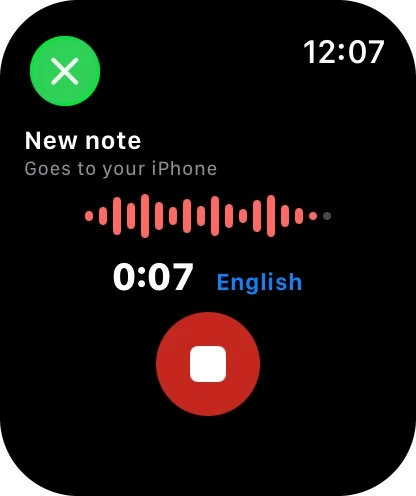
- Open Agent HUD on Apple Watch, swipe to Prompts, and tap Speak a prompt. Allow microphone access the first time, then tap stop when you finish speaking.
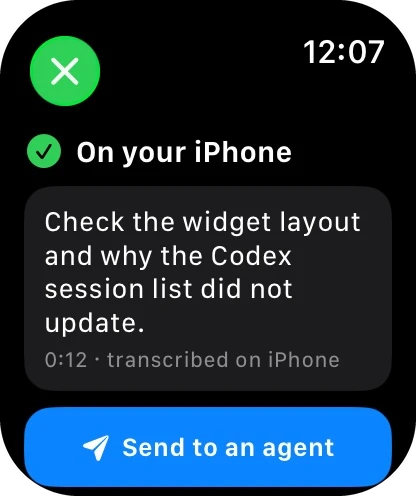
- Wait for your iPhone to transcribe the recording. On the watch, check the text, especially names and technical terms. If the transcription missed something, you can record again.
- Choose Codex or Claude Code from the available agents. Sending the prompt from the watch starts a new session in a task folder of its own on your Mac.
- Open the new session on the watch to read the latest reply or listen to it. Open the conversation on iPhone when you want to follow up there.
Record now and send later
You can record while your iPhone is out of reach. The finished note waits on the watch and transfers when the devices reconnect. Once the transcription is ready, open the prompt on the watch or find it in Sessions → Recordings on iPhone. You choose when to send it.
A short prompt goes straight to transcription when the iPhone is reachable. A longer recording can be saved for processing on the iPhone, where you can play the audio and check the text before handing it to an agent.
Where the audio and text go
Agent HUD uses a speech model built into the iPhone app. Transcription runs on the iPhone without a connection to a speech service. The original recording is kept in the iPhone's recording library until you delete the note. Sending the prompt delivers the confirmed text to your Mac.
Connect your Mac
Install Agent HUD on your iPhone and its paired Apple Watch (watchOS 10 or later). Keep the Agent HUD release running on your Mac, turn on Remote Sessions, and make sure Claude Code or Codex is set up there.
The Mac needs active Agent HUD Remote access. For an iCloud connection, use the same Apple Account on the Mac and iPhone. On the same network, with Agent HUD 0.6.0 or later on the Mac, the iPhone can instead pair by scanning the Mac's QR code.
Get Agent HUD for iPhone and Apple WatchSet up Agent HUD Remote
Questions
Can I start recording from the watch face?
Yes. Add the Agent HUD Voice prompt complication to a compatible watch face. Tap it to open Agent HUD and begin recording.
Can I start a task if my iPhone is somewhere else?
You can record the note now. It waits on the watch until it can reach the paired iPhone for transcription. You can send the prompt once the text is ready and the Mac is reachable.
Can I speak a reply to an existing Codex or Claude Code session?
Yes. Open the session on Apple Watch and use Speak reply when it is available. The paired iPhone needs to be within reach to transcribe the reply, which can be up to three minutes. Confirm the text to send it into that session.