Install on Mac
Download Agent HUD, put it in Applications, turn on client hooks for requests and replies, and keep it up to date.
Agent HUD for Mac is a download from agenthud.app/mac, signed and notarized by Apple. Install it in your Applications folder and it finds the agents on your Mac by itself.
System requirements
| macOS | 14 or later |
| Mac | Apple silicon or Intel, each with its own download |
| Agents | Install and sign in to the agents you want to follow. Supported agents lists them. |
| iPhone and Apple Watch | Optional, from the App Store. See iPhone. |
Some releases on GitHub also carry unsigned test builds for Windows and Linux. They have not been tested on real machines yet and do not update themselves.
Install
Download
Open agenthud.app/mac. It leads to the latest release on GitHub. Download the arm64 DMG for a Mac with Apple silicon, or the x86_64 DMG for an Intel Mac.
Move it to Applications
Open the DMG and drag Agent HUD onto Applications.
Open it
Open Agent HUD from your Applications folder.
Keep it in Applications
Only the Agent HUD at /Applications/Agent HUD.app can add client hooks and HUD tools to your agents. Opened from anywhere else, those switches stay unavailable.
On first launch
- The HUD appears on every display: in Notch mode on a display with a notch, in Dynamic mode on the others. See Modes.
- A menu bar icon appears, with your agents' readings, Hide notch glow, Statistics…, Refresh data, Settings… and Quit.
- Agent HUD adds itself to your login items, so it starts when you log in. Turn this off in Settings → General → Launch at login.
- It finds your agents and starts reading their records on your Mac and the quotas their vendors report.
Agent HUD has a Dock icon only while Settings or Statistics is open. Opening Agent HUD again from Applications while it runs opens Settings.
Turn on client hooks
Requests, and the replies of most agents, reach the HUD through small hooks in each agent's own settings. Client hooks are off until you turn them on.
Open Settings → General.
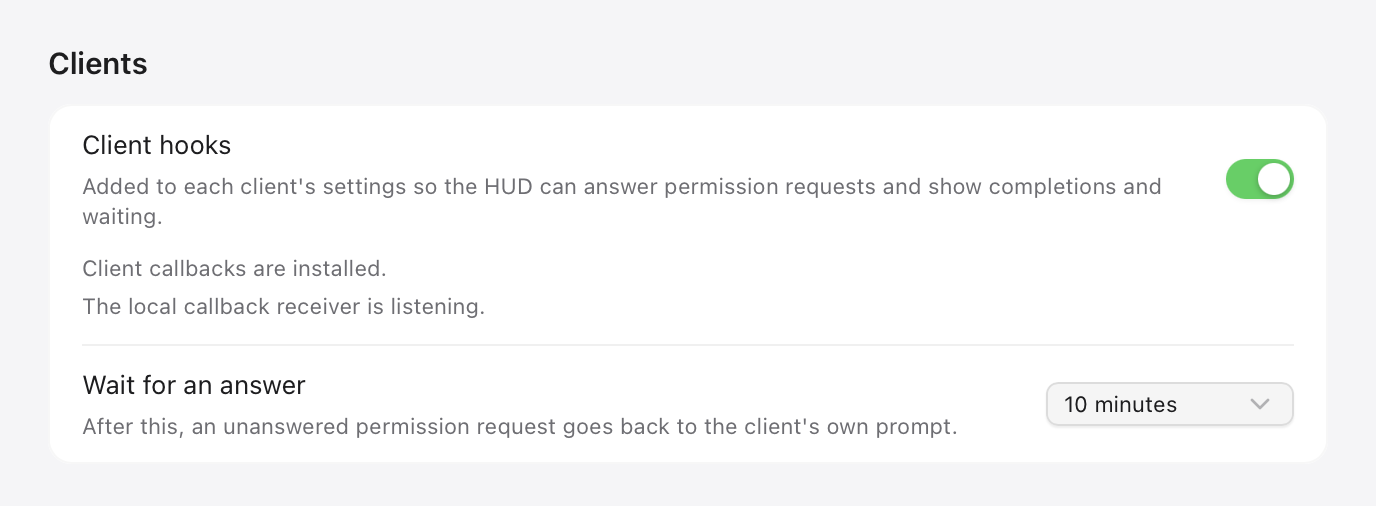
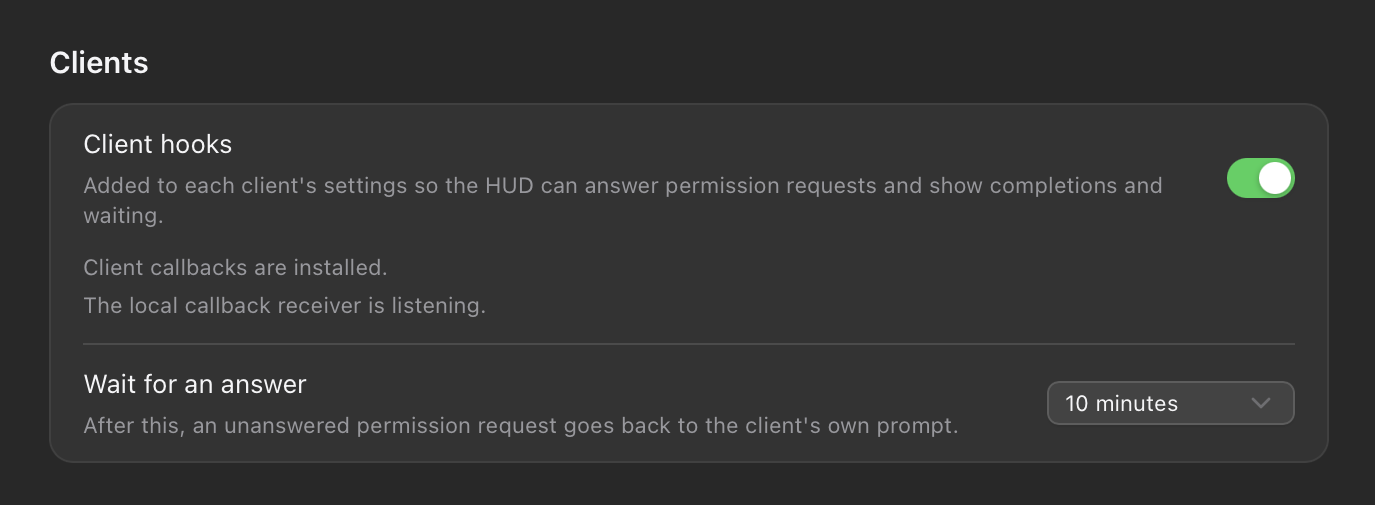
Under Clients, turn on Client hooks.
Optionally, change Wait for an answer: how long a request waits on the HUD before it goes back to the agent. It is 10 minutes unless you change it.
Codex runs a new hook only after you review and trust it in Codex. Until you do, Codex's requests stay in Codex.
Turning client hooks off removes Agent HUD's hooks again and leaves your own hooks as they are. What is written into each agent: Client hooks. What you can answer on the HUD: Requests.
Updates
Agent HUD looks for a new version once a day. When one is out, the menu bar menu shows New Version… and the panel's footer shows an arrow. Either opens Settings → Updates.
| Setting | What it does | Default |
|---|---|---|
| Automatically check for updates | Looks for a new version once a day | On |
| Download updates automatically | Downloads a new version and verifies its signature. Installing still waits for you. | Off |
| Join beta releases | Uses the beta update feed. Switching clears an update already downloaded. | Off |
The same page has Check for updates, and for a version that is out, Download update, Install update, Restart now and Skip this version. Nothing is installed until you choose Install update.
A new version shows the iPhone app version it needs (Requires iPhone version). If you use the iPhone app, update it first.
Quit or uninstall
To quit, open the menu bar icon and choose Quit (⌘Q).
To uninstall, first take out what Agent HUD added to your agents' settings: turn off Client hooks in Settings → General, and remove the rest as Remove everything lists. Then quit Agent HUD and move it from Applications to the Trash.
Deleting the app alone leaves its hooks in your agents' settings, pointing at an app that is gone.
Last updated