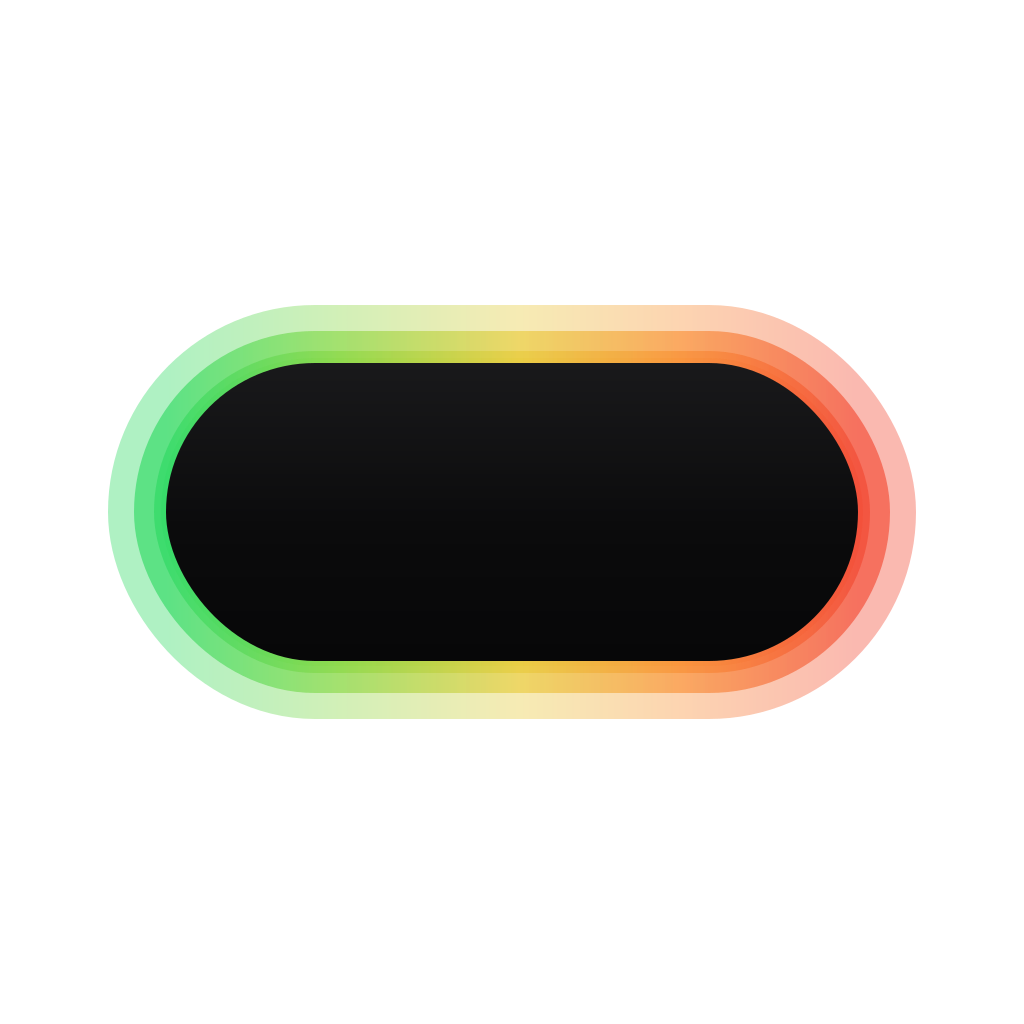
Glow and panel
Read your quotas from the glow, open the panel for quotas, balances, tokens and sessions, and jump back to a session in one click.
At rest, the HUD tells you how your quotas stand and which agents are working. A hover opens the panel with the details. Replies and quota alerts appear on the HUD as they happen, as animations, never as macOS notifications.
The glow
| Colour | Share of the quota used |
|---|---|
| Green | Under 70% |
| Yellow | 70% or more |
| Red | 90% or more |
- One colour per agent with a quota reading, taken from that agent's most used window. The 70% and 90% levels are fixed.
- It moves faster while an agent works: one cycle every 3 seconds while an agent runs, every 7 seconds when all are idle, unless you change the periods.
- Grey and still when there is no reading to show.
- Where it sits: around the notch in Notch mode, behind the logos in Dynamic mode. Simple mode has no glow.
Hide notch glow in the menu bar menu, or ⌥⌘H from anywhere, hides the glow and the reminders until you show them again. Requests still appear.
Logos and bots
In Dynamic mode, an agent's logo becomes its bot while the agent works, and shows whether it is thinking, working or waiting for you. Idle logos turn into bots now and then for a few seconds. Bot logos in Settings → Display turns this off for every display.
The panel
A hover opens the panel after 0.4 seconds.
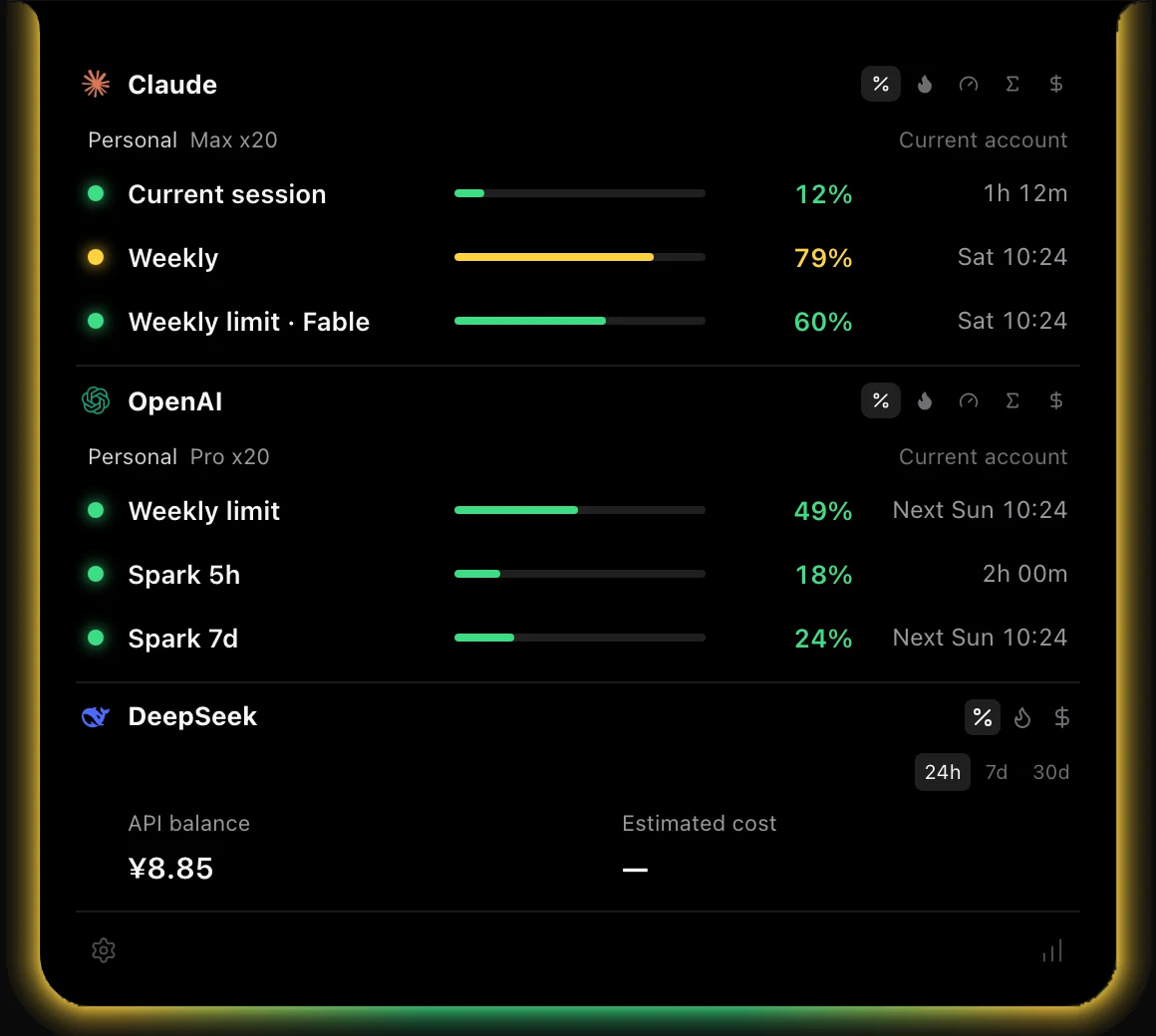
| Part | What it shows |
|---|---|
| Quota details | A block for each agent: every quota window with the share used and, with Reset countdown on, the time until it resets. An agent billed by balance, such as DeepSeek, shows its balance. |
| Token usage | Tokens over the last 24 hours, in 30-minute bars. 7d and 30d switch to daily bars. |
| Session list | Up to 5 sessions from the last 24 hours, the most recent message first. |
- Switch a block's measure: the icons at the top right of each agent's block switch its rows from the quota to other measures, such as the burn rate. How the burn rate and the forecast work: Quotas.
- An account that cannot be read never hides the others. The reason shows beside the account.
- Used or left: percentages show the share used. To show the share left, set Settings → General → Quota percentage to Remaining (100% → 0%). Colours and alerts always follow the share used.
- Footer: the gear opens Settings, Usage statistics opens the Statistics window, and an arrow appears when a new version is out.
Which parts show and in what order is set per display on Appearance.
Clicks
- A session row opens that session's page in Statistics. The Sessions heading opens the session list.
- A click that opens another window puts the HUD away first.
Jump back to a session
Return to session takes you to the session's thread, tab or terminal pane in one click. It is on every New reply card and on the session's page in Statistics. It works for Claude Code, Codex, Antigravity, Grok Bot, OpenCode and Pi.
New reply
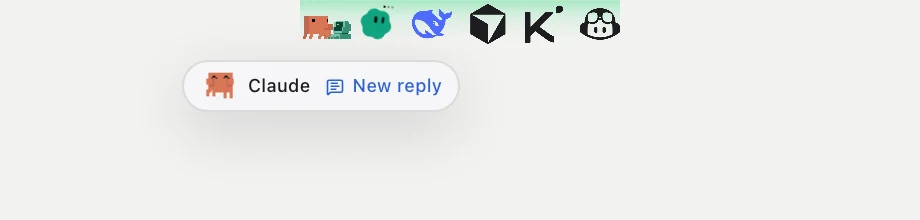

When an agent finishes a turn, a New reply card shows the agent and model, the session's title, the opening lines of the reply, when it finished and how long the turn ran.
- Return to session goes back to the session.
- View token usage opens what the session used.
A reminder comes only from agents that report replies, listed in Supported agents, and only while Live status and Completion reminders are on for that agent in Settings → Agents. A turn that finished before Agent HUD started is not replayed.
Quota alerts
| Alert | When |
|---|---|
| Running low | A window crosses 90% used, is used up, or at the recent burn rate will run out before it resets |
| Quota reset | A new reading confirms the window started again. The alert names any other window of the account that is still used up. |
| Usage resets added | A Codex account received resets it can spend |
Each alert comes once for a window and its cycle, and restarting Agent HUD never repeats one. When each alert comes, and which ones reach your phone: Quotas and balances.
Where reminders appear
- On the display under your pointer. In Notch mode they open at the notch; in Simple and Dynamic mode they come out of the sender's logo. In Notch and Dynamic mode the glow flashes in the alert's colour.
- One at a time, in the order they came. A reply or a quota alert closes 4 seconds after it shows, never while your pointer is on it.
- Requests come first. While a request is on screen, replies wait their turn and quota alerts are not shown.
- Silently. Agent HUD plays no sound and posts nothing to macOS Notification Center. With Agent HUD Remote, alerts also reach your iPhone and Apple Watch as notifications.
Hover timing
In Settings → Display → Hover behavior, for every display:
| Setting | What it does | Default |
|---|---|---|
| Hover delay | How long the pointer rests before the panel opens, 0–1500 ms | 400 ms |
| Collapse delay | How long the panel stays after the pointer leaves, 0–1500 ms | 200 ms |
| Press Option to open | A hover alone leaves the panel closed; press Option while hovering to open it | Off |
| Open immediately at the top edge | Skips the hover delay when the pointer reaches the screen's top edge directly above the HUD | Off |
Last updated