Modes
Notch, Simple and Dynamic: where each display's HUD sits, what it shows at rest, and how to switch or move it.
Each display runs one of three modes, with its own place and look. A display with a notch starts in Notch, every other display in Dynamic. In every mode a hover opens the same panel, and requests and reminders appear on the HUD.
| Mode | Where it sits | At rest |
|---|---|---|
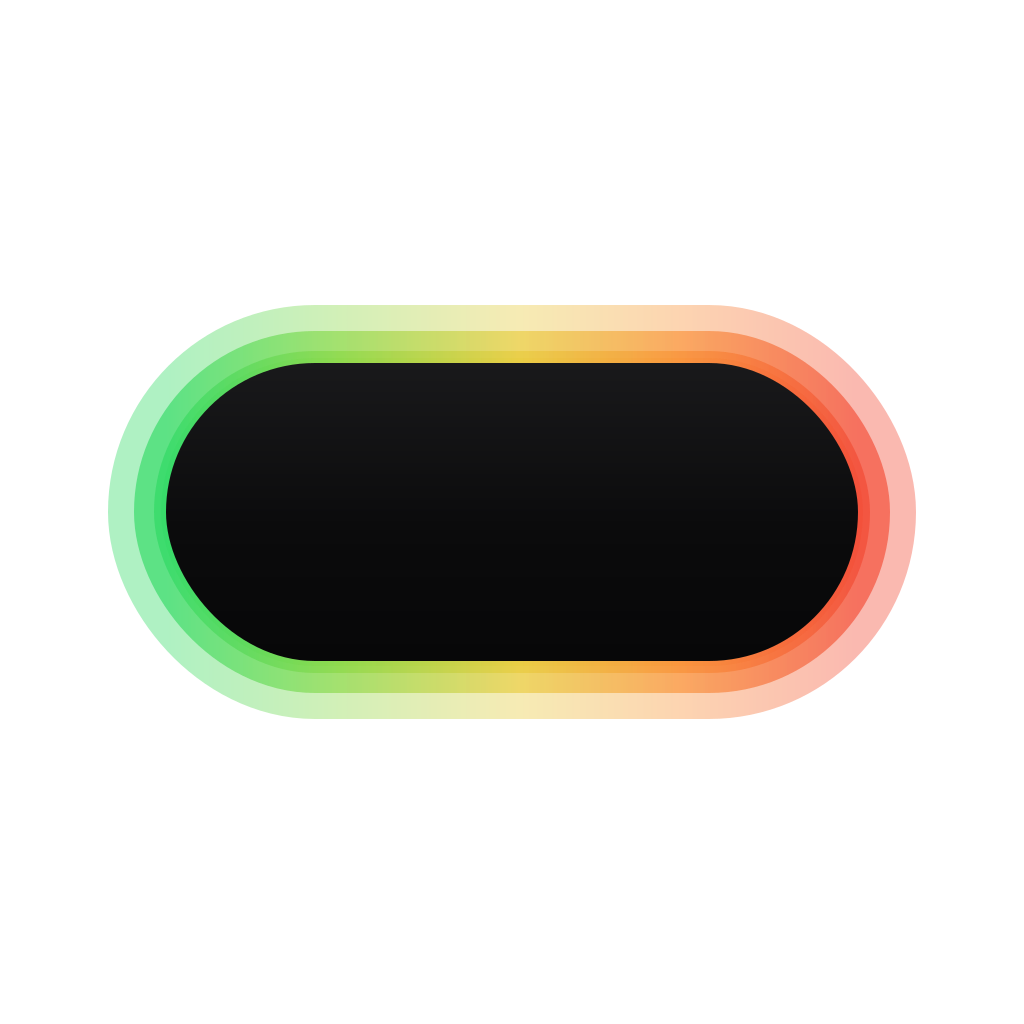
| Notch | At the top centre, around the notch. On a display without a notch, a stand-in bar is drawn there. | The glow around the notch |
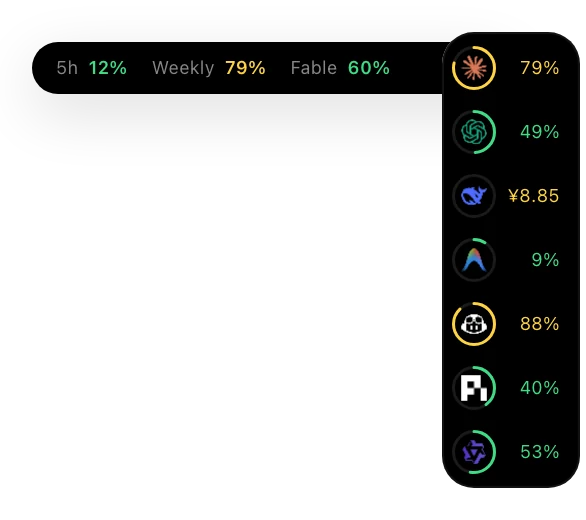
| Simple | A small floating panel on any screen edge | Each agent's logo in a ring of its most used quota, with a figure beside it. No glow. |
| Dynamic | A row of agent logos on any screen edge | The logos, with the glow behind them. A logo becomes its bot while its agent works. |
Notch


The glow sits around the notch, and reminders and requests open out of it. Notch mode shows no logos. At a hardware notch the resting row stays black in the light look too, beside the camera housing.
Simple


Each agent gets its logo and a ring. The ring is the agent's most used quota window. The figure beside it is that window's percentage; an agent billed by balance, such as DeepSeek, shows its balance, and an agent with neither shows its last 24 hours. Agents with quota windows come first, then those billed by balance alone.
Show rings and Show numbers turn either part off. Simple mode draws no glow.
Dynamic


The logos of the agents Agent HUD finds on your Mac line up along the edge, with the glow behind them. Agents with a quota come first, then those with a session in the last day, newest first, then the rest.
A logo becomes its bot while its agent works and shows whether it is thinking, working or waiting for you. A reminder or request comes out of its sender's logo, and the other logos stay where they are. With Reduce Motion on in macOS, the logos stay still and the glow holds its resting frame.
Switch modes
Open Settings → Display.
With more than one display, pick it in the Display menu.
Under Screens, choose Notch, Simple or Dynamic next to HUD.
Dragging the notch also switches that display to Dynamic. When you switch a display with a notch from Notch to Simple or Dynamic, the HUD moves to the top left, out from under the notch.
Move it
- Drag the HUD to any edge and any point along it. It lands on the nearest edge.
- On the left and right edges the logos run top to bottom, and the panel opens inward.
- Reset Position in Settings → Display brings the HUD back to the top of that display.
Notch mode stays at the top centre.
Separate agents
In Simple and Dynamic mode, Separate agents in Settings → Display gives each agent its own panel: hovering a logo opens that agent's panel instead of the panel for every agent. It is off by default.
Several displays
- Each display keeps its own mode, place, sizes, look and glow. A change on one display never moves the HUD on another, and a monitor you plug back in returns as you left it.
- Reminders and new requests appear on the display under your pointer. A request already shown on one display stays there until it is answered.
- Measured on release builds, each display's HUD adds 0.5–7% of one core and 70–170 MB of memory.
Sizes, looks and the glow are on Appearance.
Last updated